Combining Accounts
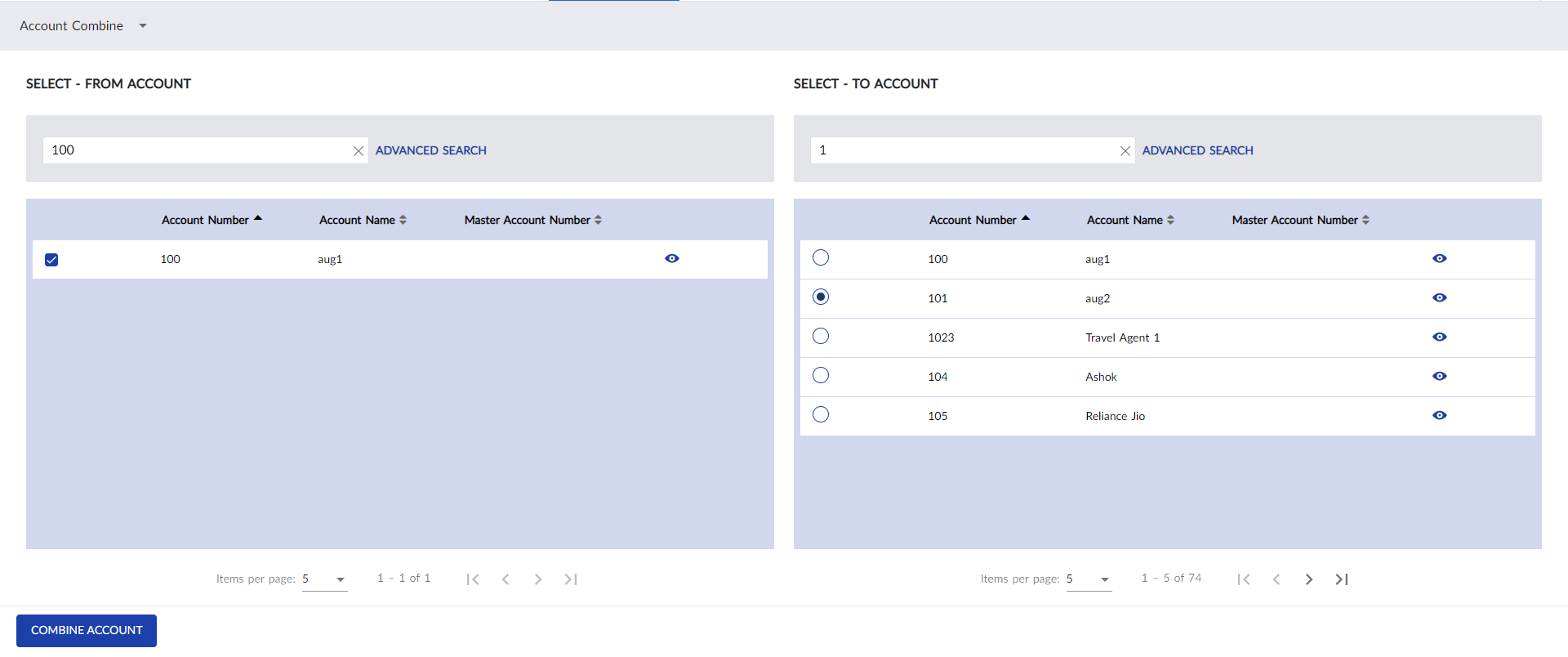
The Account Combine menu allows users to combine two or more accounts into one. When an account is merged with another account all past, current, and future bookings attached to the account will be moved to the other account and the source account will be deleted.
Breakpoint: 170385 - Combine Guest Records (Front Office - Manager)
Perform the following steps to combine accounts.
Navigate to Settings à Utilities à Account Combine.
Enter an account name or number in the search field of the Select - From Account section to search for an account.
Select one or more accounts from the results displayed. Users can view the details of the account by clicking the Eye icon against the account.
Enter an account name or number in the search field of the Select - To Account section to search for a To account.
Select an account to which the accounts selected in the Select - From Account section are to be merged.
Click Combine Account. The message Are you sure, you want to combine the account(s) appears.
Click Yes. The accounts are combined successfully.
Click OK.